Private Keys
A private key is the secret half of your key pair: it decrypts your data and proves who you are when you log in. It lives in a key file on your machine, named <login-id>_<yyyy-mm-dd>.key.json, where <login-id> is the part of your Login ID before the @ and the date is the day the file was saved. The Connect Application loads the key file at login; tiCrypt never stores your private key in readable form on a server.
You can hold more than one key in the Connect Application at once. This is normal if you work across several deployments or hold more than one tiCrypt account. Each key is listed separately on the login page with its own color and icon. Escrow and site-key files are not held here: you load them on the Escrow and Sitekey tabs each time you log in to those interfaces.
If you lose both your password and your key file, your data cannot be recovered unless your deployment has key escrow configured. Keep backups of the key file in more than one secure location, and never share it with anyone, including administrators.
Load Your Private Key
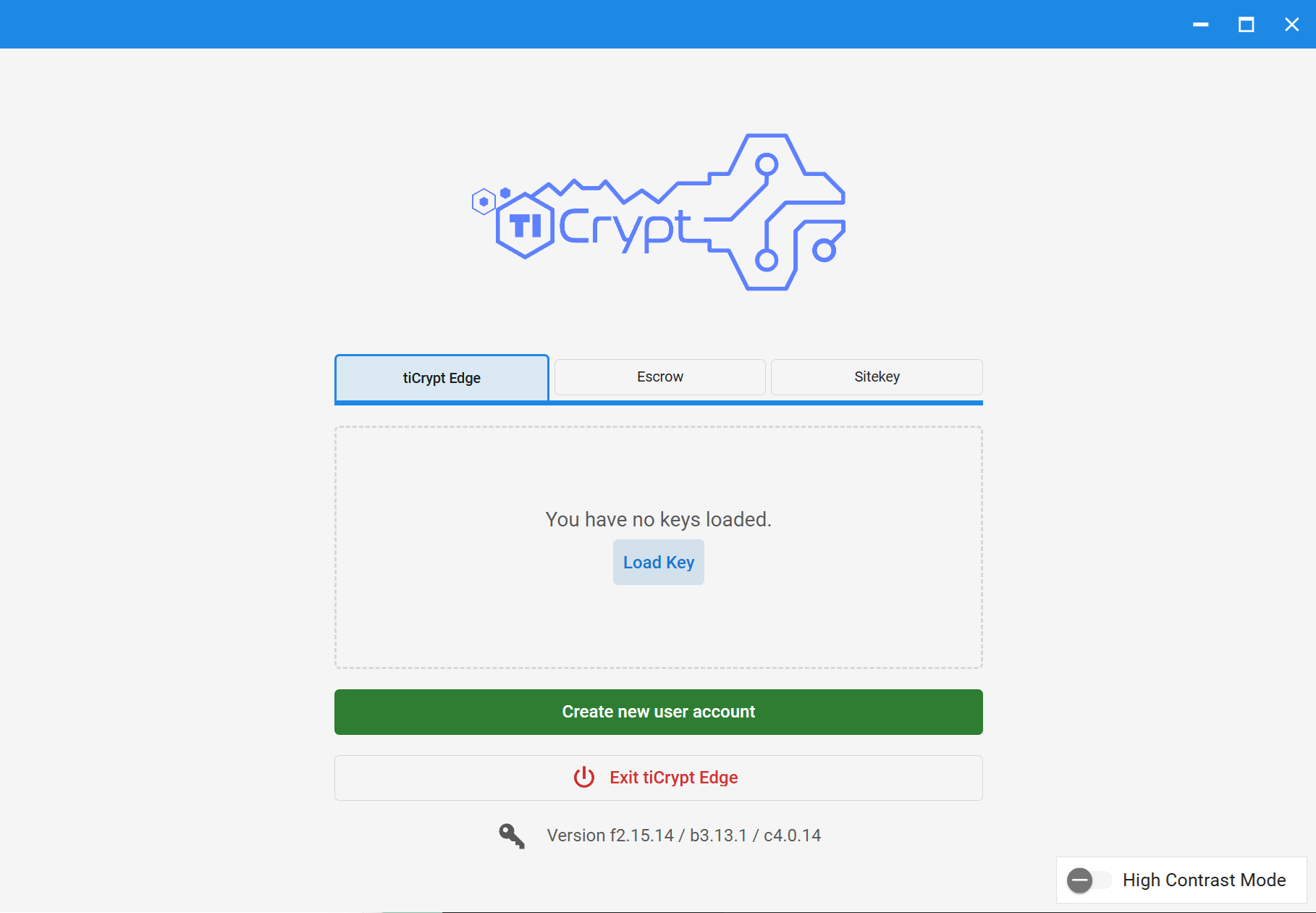
- Open the Connect Application.
- Select your deployment card.
- Click the Load Key button in the center. The login box shows "You have no keys loaded." until you load one.
- Find and select your private key file
<login-id>_<yyyy-mm-dd>.key.json. - Click Open.
You can also drag the key file onto the login box. A confirmation reads "Key imported", or "Replaced existing key" if the Connect Application already held that key. The key you load is selected for login.
Add Additional Private Keys
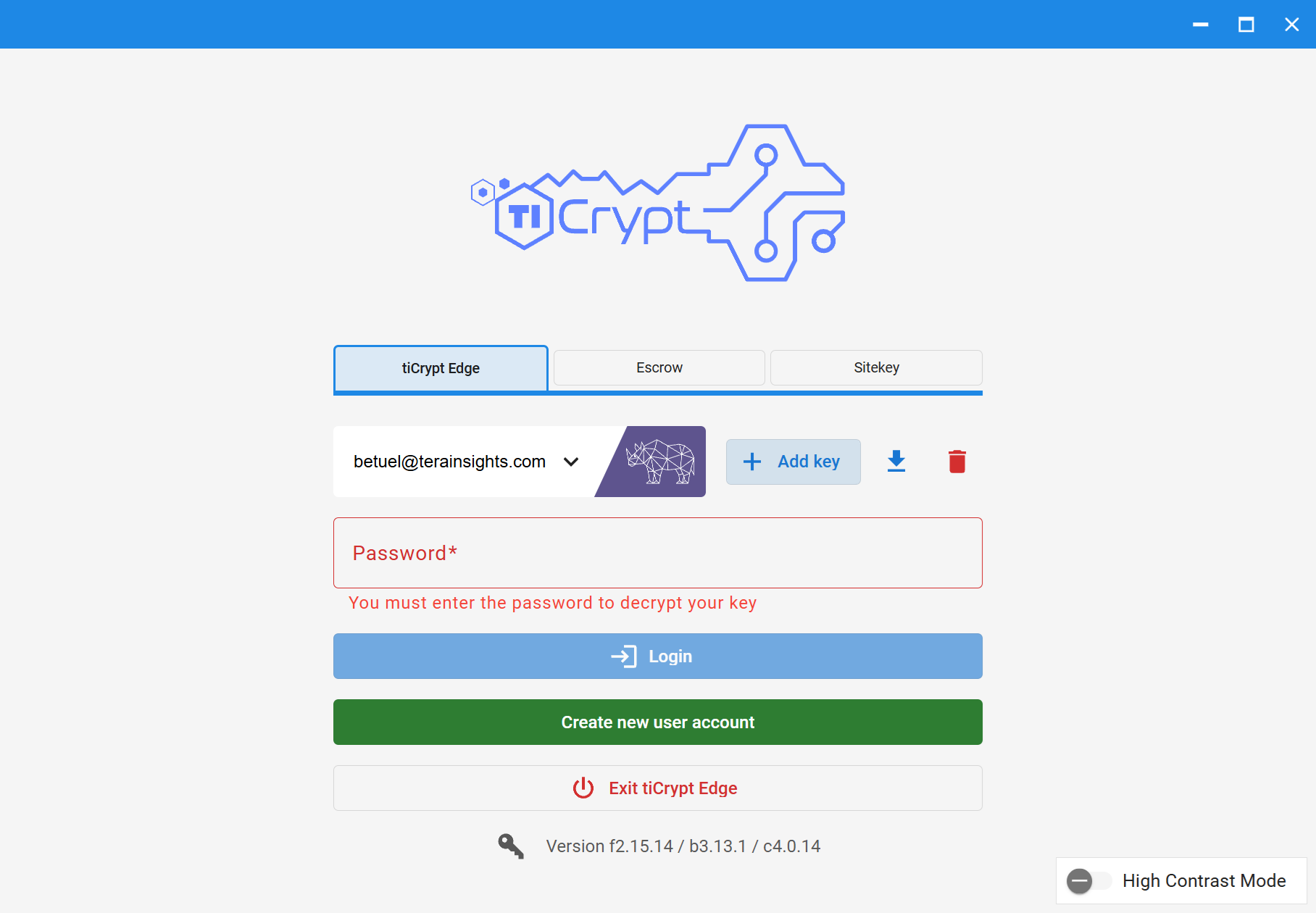
- Open the Connect Application.
- Select your deployment card.
- Click the Add key button in the center right.
- Find and select the additional private key file
<login-id>_<yyyy-mm-dd>.key.json. - Click Open.
You can also drag the additional key file onto the login box.
Switch Between Private Keys
- Open the Connect Application.
- Select your deployment card.
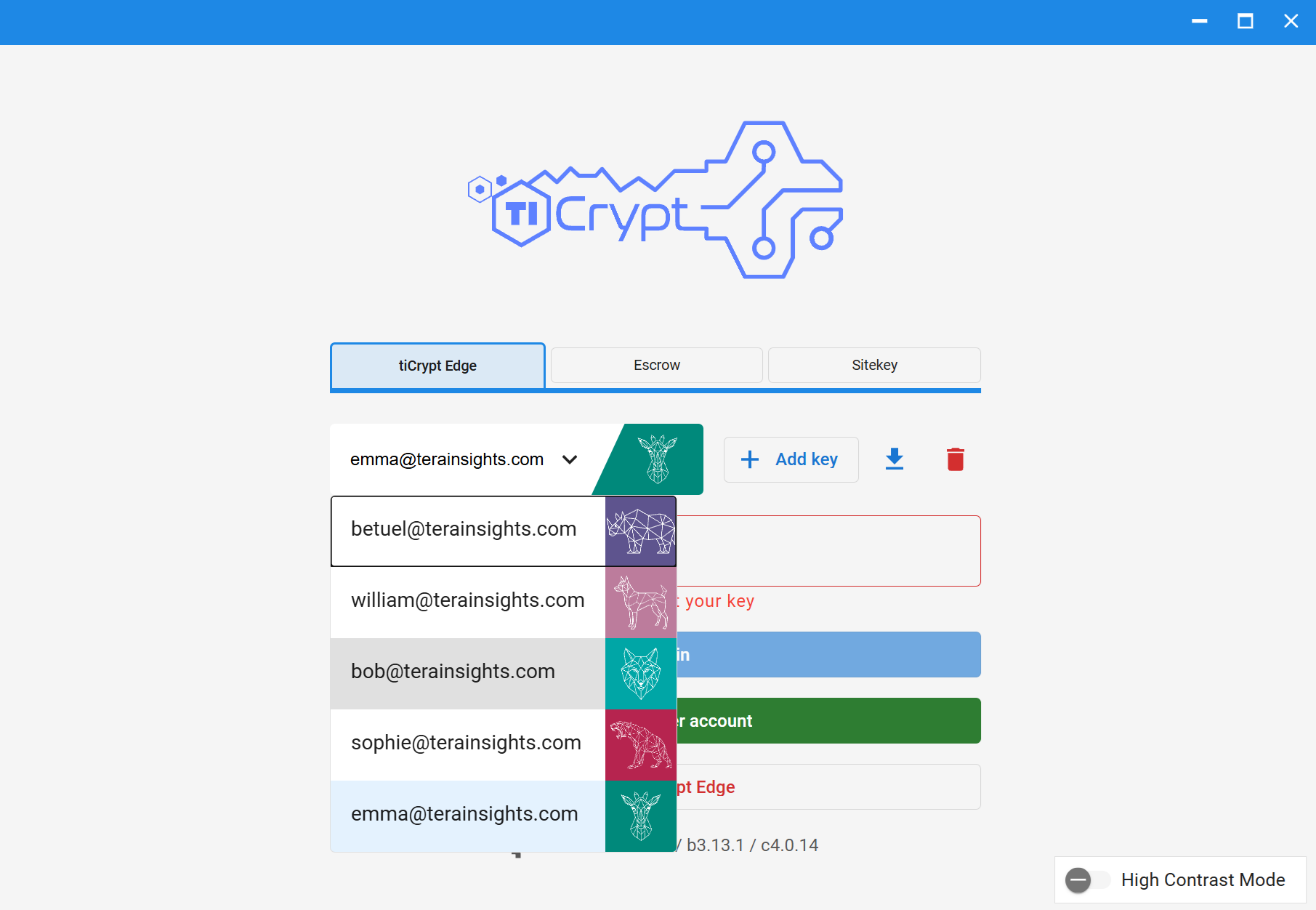
- Click the account selector in the center. It shows the email of the selected key, or Select account when none is selected, with a chevron and the key's icon.
- Select a different account from the list. Each entry shows the email and the deployment where that key was last used; the key already selected is greyed out.
- Enter the corresponding private key password.
- Click the Login button.
Download a Private Key
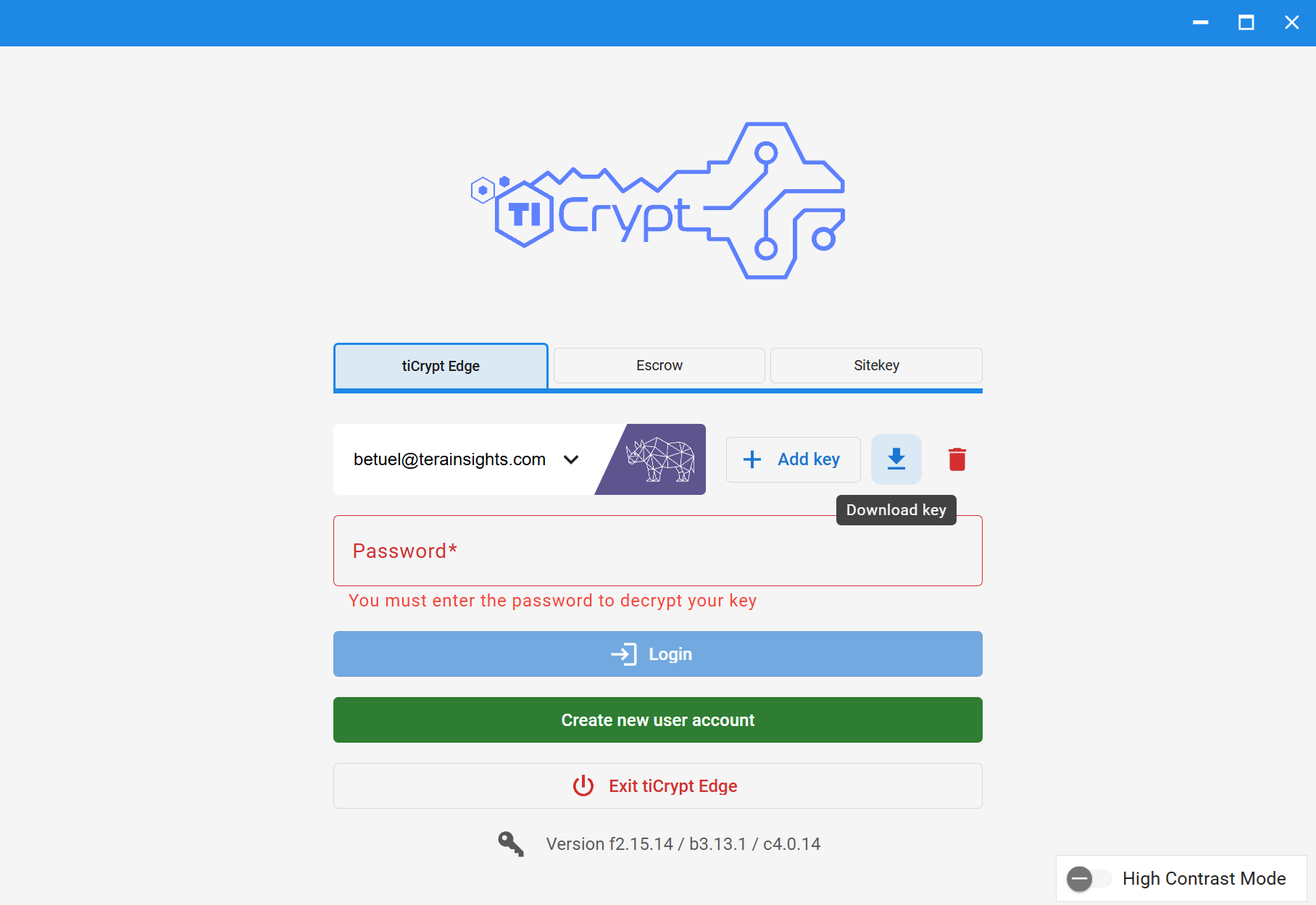
- Open the Connect Application.
- Select your deployment card.
- Click the Download key button in the center right.
- Select a folder to save the private key file
<login-id>_<yyyy-mm-dd>.key.json. The date in the name is the day you download it, not the day you registered. - Click Save.
Delete a Private Key
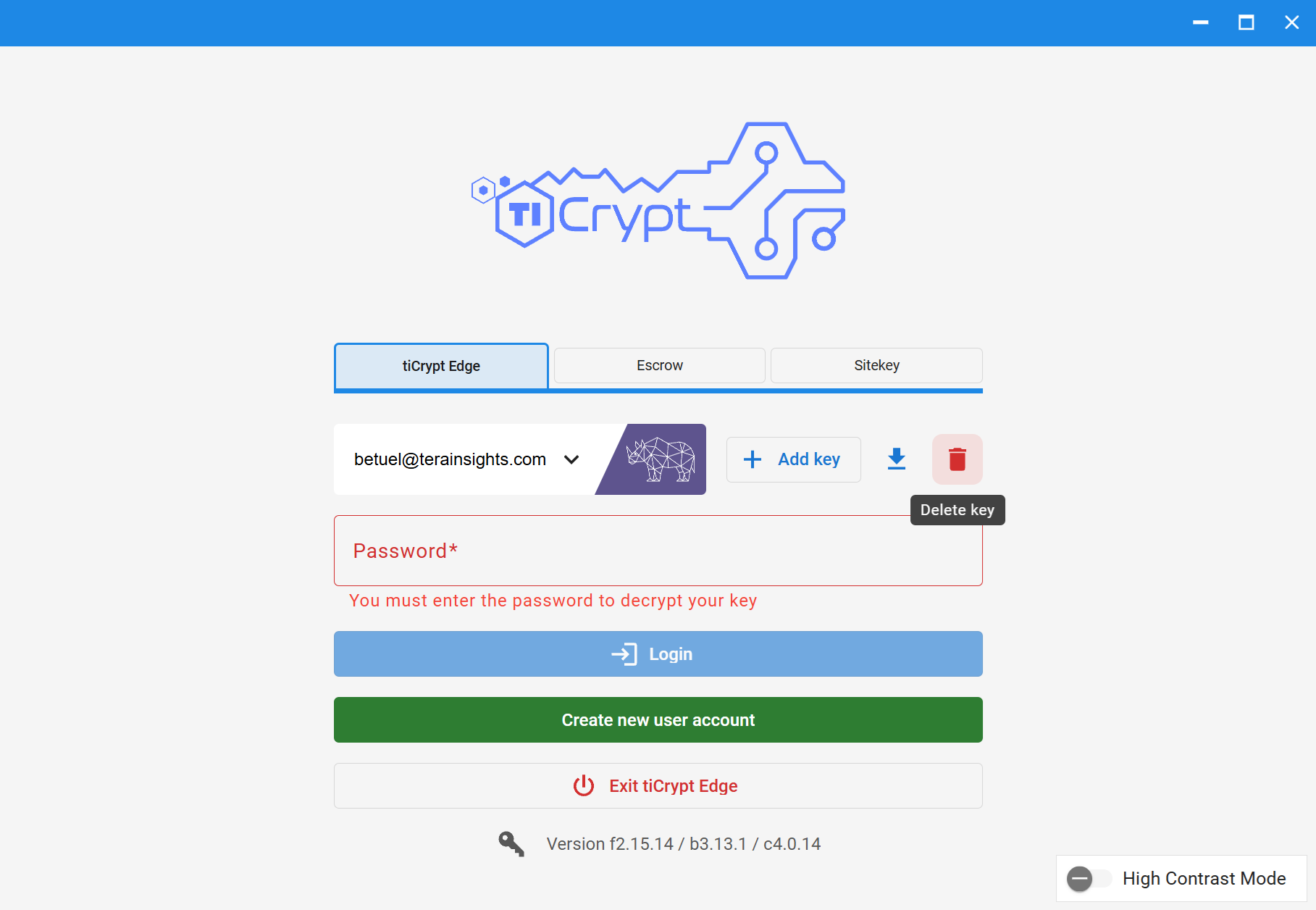
- Open the Connect Application.
- Select your deployment card.
- Click the Delete key button in the center right.
The key is removed at once, without a confirmation, and a message reads "Key wiped from cache". If it was the last key for that email on this computer, the login history shown under the login box for that email is cleared as well.
This removes the key from the Connect Application on this machine. It does not delete your account, and it does not delete any backup copies of the key file you saved elsewhere. If this was your only copy, you have lost access to your data.
How Long the Connect Application Keeps Your Keys
The Connect Application keeps the keys you load until you close it. Whether it keeps them after that depends on the deployment's Private Key Caching setting, which an administrator sets in System Settings:
| Setting | What happens to loaded keys |
|---|---|
| Never (the default) | Keys are forgotten when the Connect Application closes. You load your key file again each time. |
| Always | Keys are kept, in their encrypted form, through restarts of the Connect Application and of the computer. |
| Let the user decide | The login box shows the checkbox Remember ALL imported keys even through computer restarts. Tick it to keep your keys. |
If the setting is Never but keys from an earlier policy are still stored, the login box lists each stored email with a Download Key button and the message "The security policy forbids local caching of keys. Please export the keys, if needed, then delete them to conform to the policy. You need to upload your key on each login." Download any key you have no other copy of, then click Delete All Keys.
Ten Wrong Passwords Remove the Key
After 10 wrong passwords for the same account on this computer, the Connect Application removes the key file you were using, both on the login page and on the lock screen. On the lock screen it also logs you out. Load your key file again to log in. The count resets after a successful login.
Key File Encryption
Your password encrypts the private key inside the key file with PBKDF2 key derivation. Key files written since Frontend 2.18.0, at registration, password change, or escrow recovery, use at least 300,000 PBKDF2 iterations, so opening one takes a little longer than before. Older key files keep working unchanged.
Key Import Errors
| Message | Meaning |
|---|---|
| "Cannot use an Escrow key" | The file is an escrow account key. Load it on the Escrow tab instead. |
| "Cannot use a sitekey" | The file is a site key. Load it on the Sitekey tab instead. |
| "Not a key: must be a JSON object", "Not a key: missing email", "Not a key: missing keypair" | The file is not a tiCrypt key file. Check that you selected the right file. |
| "Cannot upload more than 1 file." | You dropped several files at once. Load one key file at a time. |
Key Icons
tiCrypt assigns each key a color and icon automatically. They cannot be changed. They exist so you can tell keys apart on the login page when you hold several.
How Escrow Protects Your Key
Every user has a private key and a public key. The public key can be shared freely. The private key must never be shared with anyone, including administrators.
Key escrow does not take your key away or break it into pieces. Your key file stays with you. Escrow adds a recoverable backup, so losing your key file is not permanent.
When your account is escrowed, your private key is encrypted with a separate Recovery Key, and only that encrypted copy goes to the server. What gets split is the Recovery Key, not your private key. It is divided into one key part per escrow group, and the Recovery Key itself is discarded immediately after use. Nobody holds it, including tiCrypt. It exists only long enough to encrypt your key, and comes back only by combining every group's key part.
Recovery therefore needs one member from each escrow group. Because the groups are independent, no individual and no single group can reconstruct your key alone. A deployment needs three escrow groups by default; an administrator can lower the minimum to two.
Every member of an escrow group holds that same group's key part. A group can take part in recovery as long as any one of its members is available, so recovery does not depend on one particular person.
Get a New Key After Losing Your Password
See Change Password, which covers both changing a password you know and recovering from one you have lost.